Notion for Beginners: The Complete Getting Started Guide
Learn how to use Notion from scratch. Set up your first workspace, create databases, and build a personal productivity system in under 30 minutes.
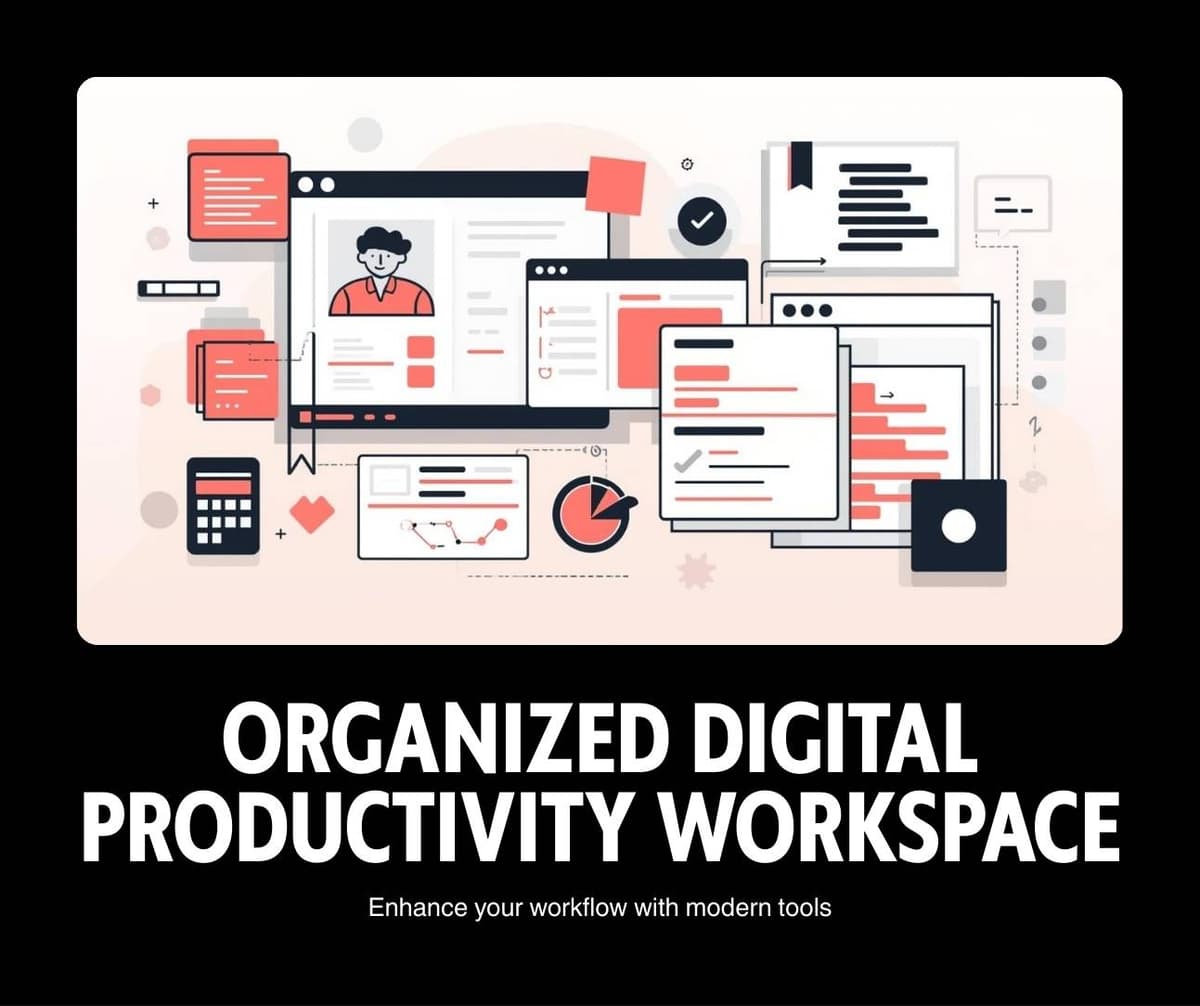
Notion is a free all-in-one workspace that combines notes, tasks, databases, and wikis into a single app. This guide walks you through setting up a complete personal productivity system in under thirty minutes, starting from a blank workspace.
Notion can feel overwhelming when you first open it because it can do almost anything. The mistake most beginners make is trying to build a complex system immediately. Instead, start with three simple pages and expand only when you need more functionality.
What Makes Notion Different
Unlike traditional apps that serve a single purpose, Notion lets you build custom tools. A single Notion page can contain text, checkboxes, images, embedded files, databases, calendars, and linked references to other pages. This flexibility is both its greatest strength and the reason many people overcomplicate their setup. You can even use Notion for project management once you master the basics.
The key insight is that Notion replaces multiple apps with one. You can stop switching between a note-taking app, a task manager, a project tracker, and a document storage system. Everything lives in one searchable workspace. Compare it with other productivity apps to see how it fits your workflow.
Step 1: Create Your Three Starter Pages
Open Notion and create three pages in your sidebar: Inbox, Tasks, and Notes. These three pages form the foundation of your system.
Your Inbox page is where you capture everything quickly. Random thoughts, article links, meeting notes, task ideas. Do not organize anything here. Just dump it in. Process your inbox once daily by moving items to the appropriate page or deleting them.
The Inbox system is critical. Your brain generates ideas at random times. Having one trusted place to capture everything prevents the mental overhead of trying to remember things and the anxiety of forgetting them.
Your Tasks page is a simple database with four columns: Task Name, Status (Not Started, In Progress, Done), Priority (High, Medium, Low), and Due Date. Start with these four columns only. Add more later if you genuinely need them.
Your Notes page contains sub-pages for different areas of your life or work. Create sub-pages for topics like Work Projects, Personal Goals, Learning, and Reference Material. Each sub-page can contain as much or as little content as you need.
Step 2: Learn These Five Features First
Notion has dozens of features, but you only need five to start being productive. Master these before exploring anything else.
Slash commands let you type a forward slash on any page to add content blocks like headings, checkboxes, callouts, dividers, and databases. This is the fastest way to build pages.
Databases are the most powerful feature. A database is essentially a spreadsheet where each row can expand into a full page. Your Tasks database is a perfect example. Each task has properties like status and priority, but you can also click into any task to add detailed notes, subtasks, or reference materials.
Views let you see the same database in different formats. Your Tasks database can display as a table, a Kanban board, a calendar, or a timeline without duplicating any data. Switch views based on what you need at the moment.
Linked databases let you display a filtered view of one database inside another page. For example, you can add a linked view of your Tasks database filtered to show only high-priority items on your daily dashboard page.
Templates let you create reusable page structures. If you write weekly reports, create a template with your standard sections. Each new report starts with the template pre-filled, saving you setup time.
Step 3: Build a Simple Daily Dashboard
Create a new page called Dashboard. Add a linked view of your Tasks database filtered to show only tasks due today or overdue. Below that, add a linked view showing tasks due this week. Add a quick notes section for capturing thoughts during the day.
This dashboard becomes your daily command center. Open it every morning, review your tasks, and work through them. At the end of the day, process your inbox and update task statuses.
Step 4: Expand Gradually
After using your basic system for two weeks, you will naturally identify what is missing. Maybe you need a project tracker with multiple phases. Maybe you want a reading list database. Maybe you need a meeting notes template.
Add these enhancements one at a time. The best Notion workspaces are built over months through incremental improvements, not designed in a single marathon session.
Common Beginner Mistakes to Avoid
Do not copy complex templates from the internet before understanding the basics. These templates look impressive but are usually more complicated than you need and difficult to customize if you do not understand how they work.
Do not create a new page for every small thought. Use your Inbox for quick captures and organize them during your daily processing session.
Do not spend more time organizing your Notion workspace than doing actual work. If you catch yourself tweaking layouts and icons for an hour, step back and focus on using the system rather than perfecting it.
Free vs Paid: What You Get
The free plan includes unlimited pages, blocks, and file uploads up to five megabytes per file. For personal use, this is sufficient. The Plus plan at ten dollars per month increases the file upload limit and adds version history, which is useful for teams but optional for individuals.
Frequently Asked Questions
Is Notion available offline?
Notion has limited offline functionality. Pages you have recently visited are cached and accessible offline, but you cannot create new pages or access pages you have not recently opened. If offline access is critical, consider Obsidian as an alternative for note-taking.
Can I use Notion for team projects?
Yes. Notion is widely used by teams. Share your workspace with team members, assign tasks, leave comments, and collaborate on documents in real time. The free plan supports up to ten guest collaborators.
How do I migrate from another app to Notion?
Notion supports importing from Evernote, Trello, Asana, Google Docs, and many other apps. Use the Import feature in Settings to bring your existing data into Notion. Plan to spend some time reorganizing imported content to fit your new system.
Related Articles

7 Best Free AI Writing Tools in 2026: Tested and Ranked
February 6, 2026
Best Free Project Management Tools Compared: 2026 Edition
February 6, 2026
5 Time Management Methods That Actually Work (Tested for 2026)
February 6, 2026

How to Focus and Do Deep Work in a World of Distractions
February 6, 2026